
Web app
Open BiomAPI to process a report, check the measurements against the original, and download or share the result. No account is needed for public access.
The main controls are Process, BiomPIN, and History. Under Process, the chevron beside Open file offers multiple-file selection and manual transcription.
Process a report
Section titled “Process a report”Choose Open file, drag a file onto the upload area, or paste an image. Check the selected filename, then choose Process Biometry.
- PDF, JPG/JPEG, PNG, GIF, and BMP files use BiomAI.
- JSON files use BiomJSON validation without an AI call. Try the synthetic report to explore the interface.
Single-file processing requests a BiomPIN automatically. If sharing is unavailable, processing can still succeed and you can download the result.
Upload from your phone
Section titled “Upload from your phone”When enabled, Phone Upload is available beside Open file on desktop. It is not shown when the app itself is open on Android or iOS.
- Open Phone Upload on the computer and scan its QR code with your phone.
- Take a photo or select one supported file on the phone.
- Review the selection, then press Send on the phone.
- Wait for the file to appear on the computer, then choose Process Biometry.
The phone-to-computer transfer is encrypted and tries a direct connection first. If it needs a relay, the interface tells you. Processing is a separate step: the computer uploads the file to BiomAPI, which sends PDFs and images to Gemini. See phone-upload privacy.
Transcribe manually
Section titled “Transcribe manually”Open the chevron menu beside Open file and choose Transcribe manually. Select the device and manufacturer, then enter the measurements you have. Patient details, examination date, and measurements are optional.
You can also enter notes, posterior keratometry (PK), and total keratometry (TK). PK and TK use the same PK / TK device selection. TK is enabled only for IOLMaster700. Selecting another device clears TK. When you save, BiomJSON validates the entry and labels its source BiomDIRECT.
Check and correct values
Section titled “Check and correct values”Check the patient and examination date first. Then compare the OD/right and OS/left measurements with the source. Check magnitudes, axes, and units. A blank field means the result has no value for that measurement. It does not mean the finding is normal.
For a PDF or image uploaded in the current session, Original opens the source in another tab. On wide screens, Compare places it beside the result; the comparison opens automatically when there is enough space. Retrieved BiomPINs and uploaded JSON do not contain the original PDF or image.
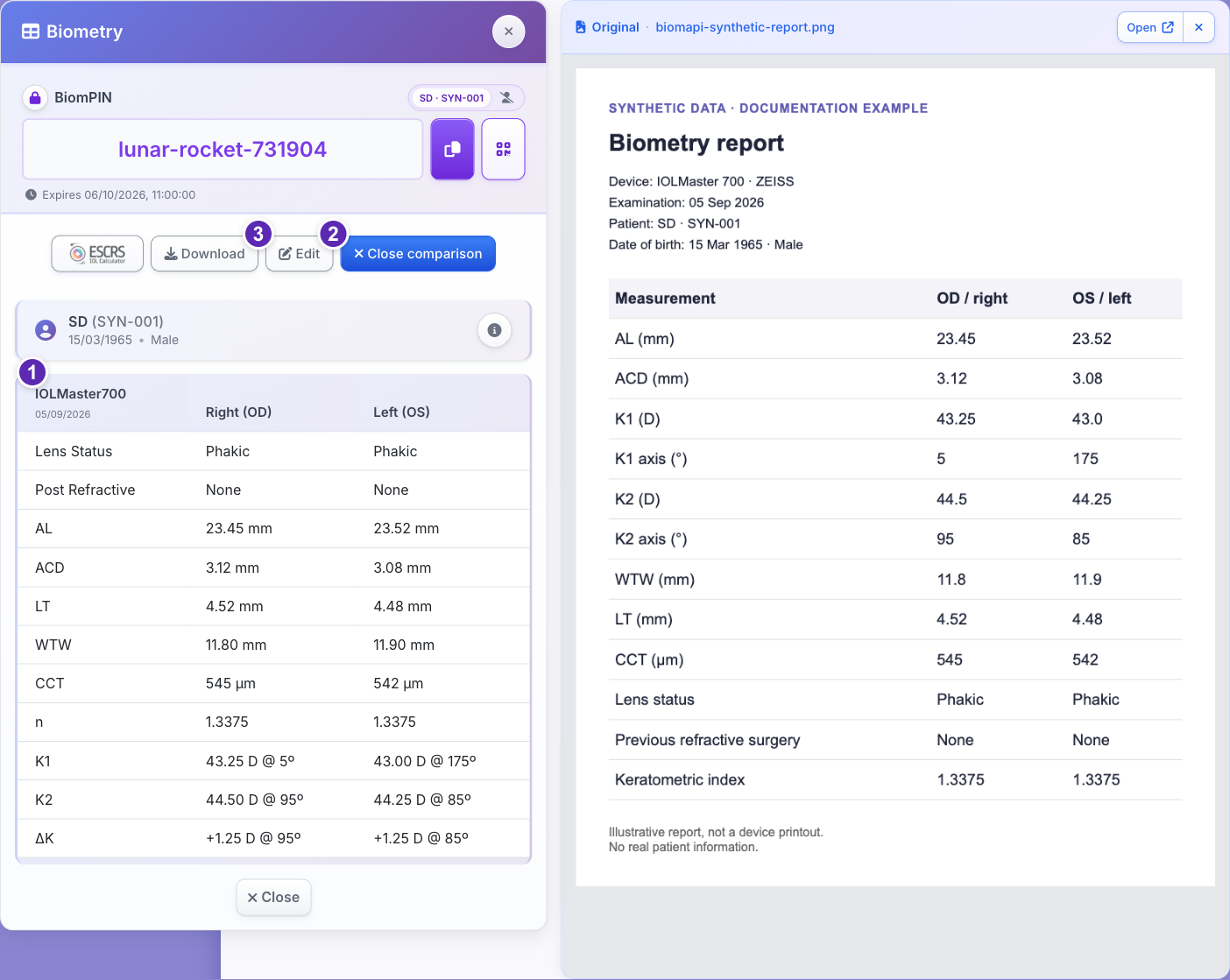
Synthetic demonstration. The numbered markers identify the measurements, Edit, and Download. Open the full-size screenshot to inspect it.
Select Edit to change a value. Saving creates a new result attributed to BiomDIRECT, including when the original extraction was BiomAI. Unsaved changes prompt for confirmation if you try to close the form.
Before you submit, the editor checks the measurement ranges and highlights fields that need correction. For K, PK, and TK, the first magnitude must not exceed the second. When both axes are entered, they must be 90° apart. Partial measurements are allowed.
You can enter PK powers with either sign. The app saves positive magnitudes and displays posterior powers as negative values in the results table.
The Metadata information button beside the patient details shows the processing method, timestamp, and available model or source details. See how provenance works.
Understand the displayed values
Section titled “Understand the displayed values”The table includes AL, ACD, K1/K2 and their axes, WTW, LT, CCT, lens status, refractive-surgery status, and keratometric index. Notes and posterior keratometry appear when supplied.
When available, TK1/TK2 and ΔTK appear before the PK rows, under the shared device header. You can edit total keratometry in the modal. JSON, CSV, and XLSX downloads include these values.
Supported devices explains what BiomAI extracts. The response schema defines units and ranges.
The app calculates three astigmatism summaries for display:
ΔK = (K2 − K1) @ K2 axisΔTK = (TK2 − TK1) @ TK2 axisΔPK = (PK2 − PK1) @ PK2 axis
The table displays posterior powers as negative values. These display conventions do not change JSON, CSV, XLSX, or stored measurements.
Share or retrieve a result
Section titled “Share or retrieve a result”When a BiomPIN is available, its card shows the code, expiry, and QR code. The identity/Anonymous selector controls whether copied links and QR codes include the available patient initials and ID. Identity is selected by default for each result.
Anonymous removes those two identifiers from the link; it does not remove all potentially identifying information from the report. See what a BiomPIN contains.
To reopen a result, select BiomPIN and enter the full code, including all six digits. Opening a BiomAPI PIN link retrieves it automatically. Avoid guessing: repeated wrong numeric PINs can permanently destroy the share.
Open the ESCRS calculator
Section titled “Open the ESCRS calculator”The ESCRS action opens the configured IOL calculator with a BiomPIN link so it can import the measurements. When available, patient initials and ID may travel separately in the URL fragment. Treat an identifying link as patient data and check the imported values in the calculator.
Find a result in History
Section titled “Find a result in History”History keeps BiomPIN entries in this browser, including the PIN, available initials/ID, and expiry. Select an entry to retrieve the measurements again. Identity already known to this browser can be restored locally.
History is not synced between devices and does not store a permanent copy of the report. Clearing an entry removes the local shortcut; it does not delete the server’s share. Download results you need to retain before their BiomPINs expire.
Process multiple files
Section titled “Process multiple files”Choose Select multiple files from the chevron menu. Set the options before choosing the files:
| Option | What to choose |
|---|---|
| Slow | The default for a new dataset: 0.5 credit per PDF/image, with potentially much longer waits |
| Standard | 1 credit per PDF/image, usually faster |
| Add to history | On by default; creates a BiomPIN for each successful result. Turn off to avoid creating shares. |
| Create spreadsheet | On by default; includes combined CSV and XLSX files in the download |
JSON validation is unaffected by speed. The Gemini-key link lets you use BYOK for PDFs and images; your key and processing speed are separate choices.
Keep the tab open until processing finishes. Files are processed as individual requests, and each row shows its outcome. Review failures and successful results before export. The browser has no fixed file-count cap, but quotas and export-size limits still apply.
Download your results
Section titled “Download your results”- Single report: choose Download to save the complete JSON response, including provenance and any BiomPIN information.
- Dataset: choose Download ZIP for individual JSON results and, if selected, combined CSV and XLSX spreadsheets. Failed files have no result to export.
The spreadsheets contain two rows per report, one for each eye, with right_eye=1 for OD and right_eye=0 for OS. JSON filenames use the patient ID and device where available. Export details describes the archive and limits.
Keys and usage
Section titled “Keys and usage”The bottom status bar shows your access and remaining credits. You can enter a BiomAPI key for its assigned quotas or a Gemini key for BYOK extraction. Saved keys remain in this browser’s local storage until cleared.
See authentication and credits and limits for the difference between the two keys and when requests consume credits.
Report an extraction problem
Section titled “Report an extraction problem”When feedback is enabled, fresh single-file BiomAI results offer an accuracy rating. The rating sends only your choice and a technical reference, not the report or measurements. You can still rate the original extraction after editing it in the same session.
After a negative rating, Let us know what went wrong. opens an optional feedback form. The app sends no email until you press Send. You can choose to include a de-identified copy of the original JSON. The form shows it for review before submission. The source report is never attached. See feedback privacy.
Use BiomFILL
Section titled “Use BiomFILL”The BiomFILL browser extension brings BiomAPI into supported browser form workflows. Use it when you want to fill a compatible form without building an integration yourself. Check its store listing for supported sites and setup.
For your own application, use the Web Widget, which returns data only after the user presses Send. For help with uploads, missing values, or expired shares, see Troubleshooting.